Quick start
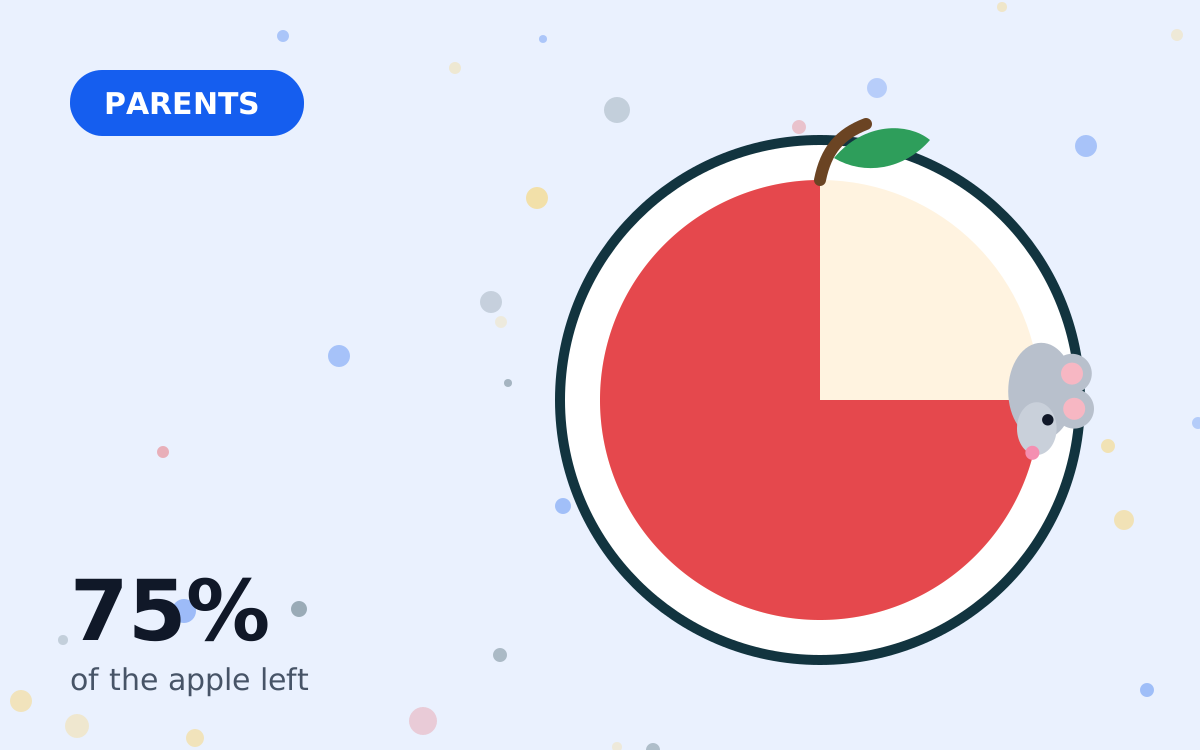
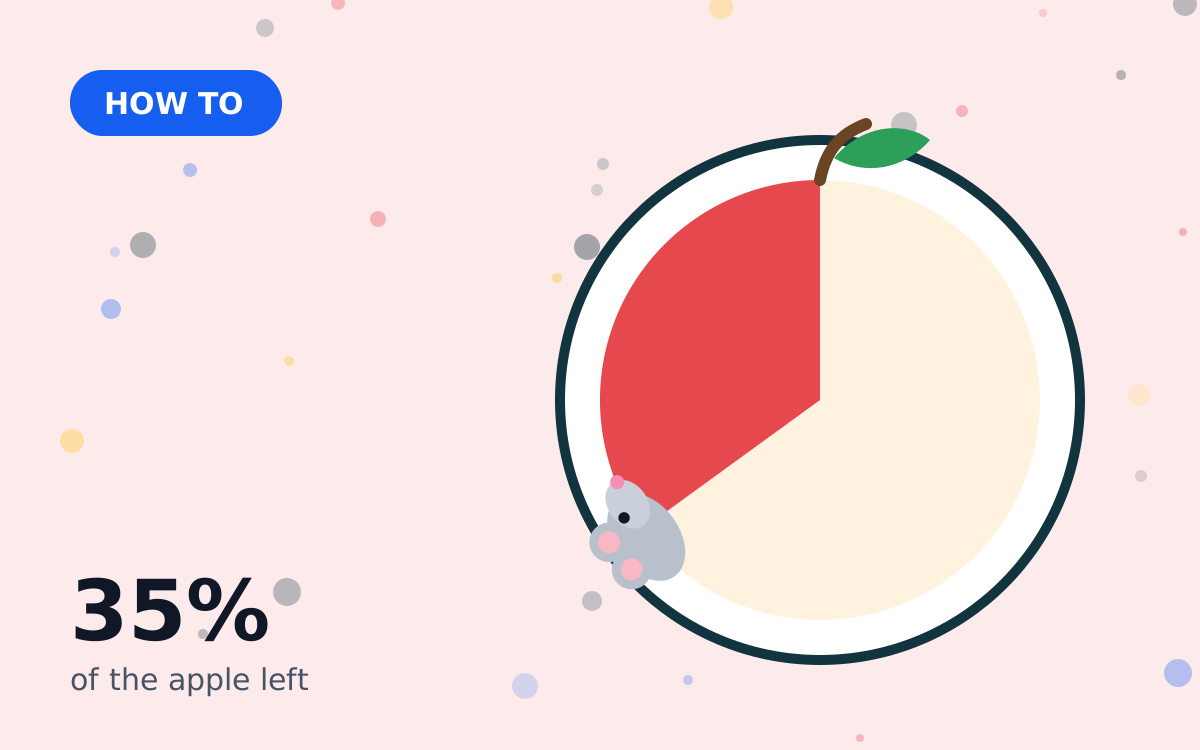
On our online Mouse Timer, tap 5, 10 or 15 and press Start (or the Space key). In the Mouse Timer app, tap the matching time on the main screen and the mouse starts eating straight away. The apple is full at the beginning and gone exactly when the time ends.
Mouse timer 5 minutes
Five minutes is short enough for young children to wait through and long enough to finish a small task. It's the classic “five more minutes” warning before an activity ends.
- Transition warnings: start a 5 minute apple before leaving the playground or turning off a show.
- Tidy-up races: “Can we finish before the apple's gone?”
- Classroom starters: a quick warm-up question or reading task.
- Short breaks: the standard break in a Pomodoro-style study session.
Mouse timer 10 minutes
Ten minutes is a sweet spot for focused tasks with younger children and for routines that tend to drag on.
- Getting dressed or ready for school.
- Reading practice: ten minutes of shared reading each evening.
- Instrument practice for beginners.
- Turn-taking: ten minutes each with a toy or device, so everyone can see when it's their turn.
Mouse timer 15 minutes
Fifteen minutes works well for homework blocks and older children, and it's a comfortable length for adults who want short, focused work sessions.
- Homework sprints followed by a 5 minute break.
- Group work in class, with the apple projected on the board.
- Quiet time or rest after lunch.
- Chores: “let's clean for one apple”.
Which length should I choose?
| Length | Good for | Age guide |
|---|---|---|
| 1–3 minutes | Tooth brushing, hand washing, waiting turns | All ages |
| 5 minutes | Warnings before a change, short breaks, starters | Pre-school and up |
| 10 minutes | Getting ready, reading, practice | Early primary and up |
| 15 minutes | Homework blocks, group work, focus sessions | Older children and adults |
| 20–30 minutes | Screen time limits, longer study, rest | Older children and adults |
These are rough suggestions, not rules. Every child is different; start short and build up.
Setting any other time
In the online tool, type minutes and seconds in the Custom time boxes and click Set (or press Enter). You can set anything from one second up to many hours, although very long countdowns are better handled by a standard alarm. The official app focuses on the times shown on its main screen; parents can reduce the list so children only see the choices that suit them.
Tips for a smooth countdown
- Say what happens at the end before you start: “When the apple's gone, we put shoes on.”
- Be consistent. If the timer ends, follow through — that's what builds trust in it.
- Let children press Start themselves; it gives them a sense of control.
- Use the chime for activities where nobody will be watching the screen.
- Keep the screen visible. The app prevents dimming; on the web tool, use Big screen mode.
Longer countdowns: 20, 30 and 60 minutes
Longer apples work well for screen-time limits, quiet time or longer study blocks. For children, a long countdown can feel endless, so check in at the halfway point (“look, half the apple's gone”) and consider breaking long tasks into several shorter apples. The online tool has quick buttons for 20, 30 and 60 minutes, and the remaining time shows in your browser tab so you can keep an eye on it from another page.
How accurate is the online countdown?
Our tool doesn't simply count ticks; it records the exact moment you pressed Start and compares it with your device's clock. That means it stays accurate even if the browser slows down background tabs. The one exception is when a phone fully suspends a web page after the screen locks — keep the page visible for long countdowns, or use the app, which can notify you in the background.
Building a routine with repeated apples
Repeating the same timer at the same moment every day turns it into a routine that children quickly learn: a 10 minute apple for getting dressed, a 5 minute apple before leaving, a 15 minute apple for homework. After a week or two, many children start asking for “the apple” themselves. Keep the lengths consistent, and only change them when the routine is working well.
Why a countdown helps
A Mouse timer countdown shows time running down rather than counting up, which matches the question people actually ask: “how much is left?” A shrinking apple answers that question at a glance, without anyone needing to read the numbers — though our online tool shows them too, for older children and adults.